10.0.0.0.1 IP
PisoWiFi guide covers 10.0.0.1 login, portal access, pause time, Vendo, LPB, troubleshooting, admin settings, and useful tips daily.
Piso WiFi – 10.0.0.1 Login, Portal, Pause Time
Piso WiFi is a popular pay-per-use internet system that lets users access a Wi-Fi connection by purchasing a specific amount of browsing time. Instead of paying for a full monthly connection, users can connect to a Piso WiFi network, open its portal, insert coins or use an available access method, and start an internet session. Many Piso WiFi setups use a local address such as 10.0.0.1 for portal or network access, although the exact address can vary depending on the machine and configuration.
This guide explains how Piso WiFi works, how to log in, how to access the portal, how pause time works, and what to do when the connection or login page does not work. It also covers Piso WiFi Vendo, LPB Piso WiFi, admin access, common IP address variations, and practical troubleshooting tips.
What Is Piso WiFi?
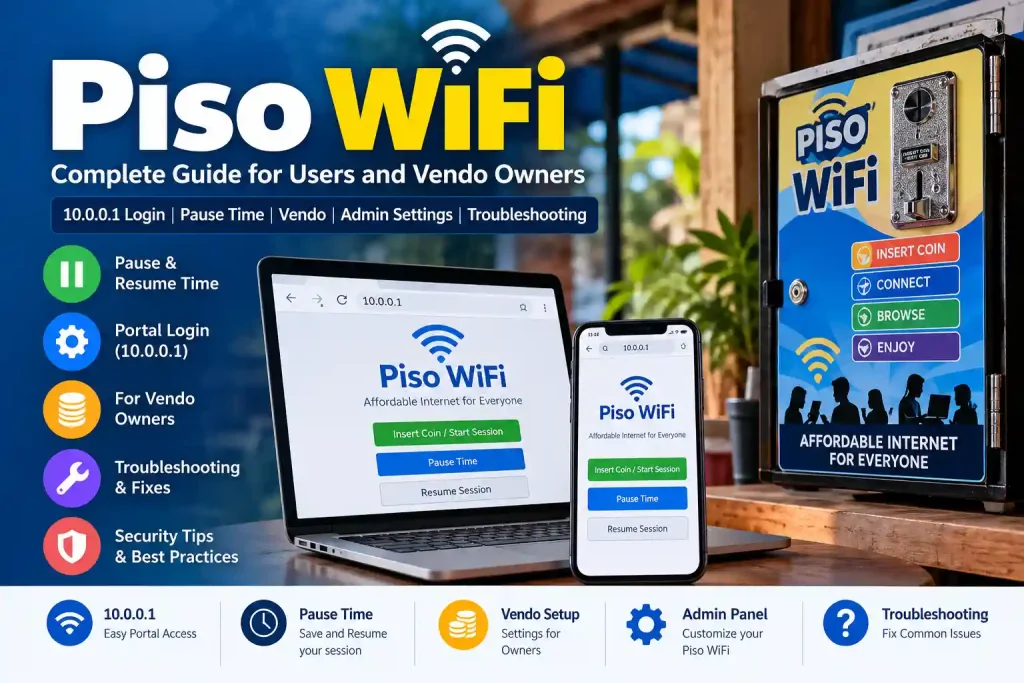
Piso WiFi is a vending-style internet access system designed to provide affordable, short-term Wi-Fi access. The term is commonly associated with coin-operated or voucher-based Wi-Fi machines where users purchase internet time instead of subscribing to a traditional fixed broadband plan.
A typical Piso WiFi setup includes a wireless network, a vending or payment system, a captive portal, and software that controls each user’s session. Once you connect to the network and complete the required payment or access process, the system grants internet access for the amount of time assigned to your session.
How Does Piso WiFi Work?
The basic process is straightforward:
- Turn on Wi-Fi on your phone, tablet, laptop, or other compatible device.
- Connect to the Piso WiFi network.
- Open a browser and wait for the login or captive portal to appear.
- Follow the instructions shown on the portal.
- Insert the required coins or enter the provided access information.
- Start browsing after your session becomes active.
- If the system supports pause time, use the pause option when you temporarily stop using the connection.
The exact interface and available features depend on the Piso WiFi software, hardware, and configuration used by the operator.
How Piso WiFi Provides Pay-Per-Use Internet
Instead of giving every customer unlimited access, the system assigns a specific amount of internet time based on the payment or voucher selected. For example, an operator may configure different rates for different amounts of time.
The available rates are controlled by the operator, so they are not necessarily the same on every Piso WiFi machine.
What Is a Piso WiFi Vendo Machine?
A Piso WiFi Vendo machine combines Wi-Fi access with a payment or vending system. A customer connects to the wireless network, uses the portal, pays according to the machine’s instructions, and receives internet access.
Some machines may provide pause and resume functionality, while others may have different session rules.
Who Can Use Piso WiFi?
Anyone with a compatible Wi-Fi device can generally use a Piso WiFi network when the operator has made it available to the public. Phones are the most common devices, but laptops, tablets, and other Wi-Fi-enabled devices can also work.
Is Piso WiFi Safe to Use?
Piso WiFi can be useful, but users should remember that it is a shared or public-style network. Avoid entering sensitive information on unfamiliar websites, use HTTPS websites, keep your device updated, and do not share account or payment information unnecessarily.
How to Use Piso WiFi
Using Piso WiFi normally takes only a few steps.
Step 1: Turn On Wi-Fi
Open the Wi-Fi settings on your phone or computer and make sure wireless connectivity is enabled.
Step 2: Connect to the Piso WiFi Network
Select the correct Piso WiFi network from the available networks. If you are unsure which network belongs to the machine, check its displayed network name or ask the operator.
Step 3: Open the Piso WiFi Portal
After connecting, open Chrome, Safari, or another browser. Many systems automatically redirect you to a captive portal.
If the portal does not appear, you may need to open the configured local address manually. Many systems use 10.0.0.1, but you should not assume that every Piso WiFi machine uses the same address.
Step 4: Insert Coins or Enter Your Access Code
Follow the payment or login instructions displayed by the machine. Depending on the system, you may need to insert coins, enter a voucher, or use another authentication method.
Step 5: Start Your Internet Session
After successful payment or authentication, the system should activate your session. You can then browse websites and use online services according to the time or access limit assigned to you.
Step 6: Check Your Remaining Time
If the portal provides a session timer, use it to check how much time remains. This can help you decide when to pause or finish your session.
Piso WiFi Login & Portal
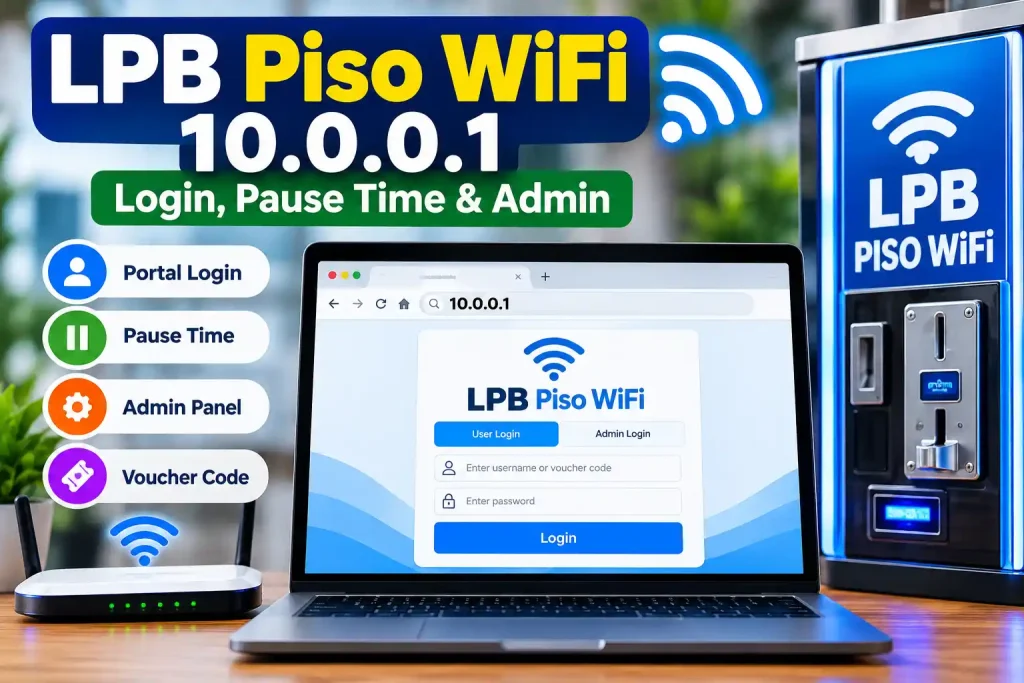
The Piso WiFi login portal is the page that allows a connected user to start or manage an internet session. It is different from the administrator panel used by the owner or operator.
What Is the Piso WiFi Login Portal?
The portal is usually a web-based page displayed after you connect to the Piso WiFi network. It may show payment instructions, available time, session status, pause controls, and other options supported by the machine.
How to Open the Piso WiFi Portal
First connect to the correct Piso WiFi Wi-Fi network. Then open your browser.
If automatic redirection does not happen, try opening the local address provided by the machine or operator. On many setups, this may be 10.0.0.1.
How to Log In to Piso WiFi
The exact login process depends on the system. Some machines use a payment-based portal, while others may require a voucher, code, or account.
Always follow the instructions displayed on the actual portal instead of assuming that a generic username or password will work.
Piso WiFi Login Using 10.0.0.1
When a Piso WiFi setup uses 10.0.0.1 as its local gateway or portal address, connect to its network first and then enter:
10.0.0.1
in your browser’s address bar.
Do not type the address into a search engine. It is a local network address, so it should be entered directly into the browser address field.
Piso WiFi Portal Not Opening?
If the portal does not appear:
- Confirm that you are connected to the correct Wi-Fi network.
- Turn Wi-Fi off and back on.
- Reconnect to the network.
- Open a new browser tab.
- Try another browser.
- Check whether your device received an IP address.
- Find the actual gateway address if 10.0.0.1 does not work.
- Ask the Piso WiFi operator if the machine is offline.
10.0.0.1 Piso WiFi
10.0.0.1 Piso WiFi is one of the most common search topics related to Piso WiFi. The address is a private IPv4 address frequently used as a local gateway in network equipment and some Piso WiFi configurations.
What Is 10.0.0.1?
10.0.0.1 is a private IP address. It is not a public website address. When your device is connected to a network that uses this address as its gateway, your browser can communicate with the local router or network management interface through it.
The exact function of 10.0.0.1 depends on how the Piso WiFi system has been configured.
Why Does Piso WiFi Use 10.0.0.1?
Some Piso WiFi installations use 10.0.0.1 as their local gateway, portal, or network management address. This makes it possible for connected devices to communicate with the local network equipment.
However, not every Piso WiFi machine necessarily uses 10.0.0.1. The operator may use a different private IP address.
How to Access 10.0.0.1 Piso WiFi
Follow these steps:
- Connect to the relevant Piso WiFi network.
- Open a web browser.
- Tap or click the address bar.
- Enter 10.0.0.1.
- Press Enter or Go.
- Follow the page displayed by the local network.
If the page does not load, do not immediately assume the machine is broken. Your network may be using another gateway address.
10.0.0.1 Piso WiFi Login
A normal user may be redirected to a captive portal after connecting to the network. An administrator may instead encounter a management or router login page.
These are not necessarily the same thing.
User access is generally related to starting or managing an internet session.
Admin access is related to managing the network, machine, or system configuration.
10.0.0.1 Piso WiFi Admin Login
The admin panel is intended for the person managing the Piso WiFi system. Depending on the equipment and software, it may provide access to network settings, session controls, rates, user management, or other configuration options.
Do not assume that admin/admin or another commonly listed credential will work on every system. Credentials are configuration-dependent and may have been changed by the owner.
10.0.0.1 Piso WiFi Portal
A Piso WiFi portal can be hosted or redirected through the local network. If your machine is configured this way, entering 10.0.0.1 while connected to the correct network may take you to the relevant page.
If it does not, finding the actual gateway address is a better approach than repeatedly trying random IP variations.
10.0.0.1 Piso WiFi Pause Time
Pause time is one of the most useful features available on supported Piso WiFi systems. It allows a user to temporarily stop an active session so that the remaining time can be used later.
What Is Piso WiFi Pause Time?
Pause time temporarily suspends an eligible internet session. Instead of allowing the session timer to continue while you are away, the system may hold the remaining time until you resume it.
The exact pause rules depend on the Piso WiFi platform and operator configuration.
How to Pause Your Piso WiFi Session
If your machine supports the feature:
- Open the Piso WiFi portal.
- Find the active-session controls.
- Select Pause.
- Wait for the portal to confirm that the session has been paused.
- Leave the network or close the portal if appropriate.
Do not simply disconnect from Wi-Fi and assume that your time has been paused.
How to Resume Your Piso WiFi Session
When you are ready to continue:
- Reconnect to the relevant Piso WiFi network.
- Open the portal.
- Sign in or identify your existing session if required.
- Select Resume.
- Confirm that your remaining time has become active again.
How to Pause Piso WiFi Through 10.0.0.1
If your system uses 10.0.0.1 for its portal, connect to the network and open the address in your browser. If your active session supports pause time, the option may be displayed within the portal.
The button and workflow can look different between systems, so the portal shown by your machine should take priority over generic instructions.
Can You Pause Without a Pause Button?
Usually, you should not assume that disconnecting from Wi-Fi is equivalent to pressing a pause button. Some systems may continue counting down even after your device disconnects.
If there is no pause option, the feature may be disabled by the operator or unavailable on that particular system.
How Long Can a Session Stay Paused?
There is no universal pause duration for every Piso WiFi system. The operator or software configuration may define how long a paused session remains valid.
Can You Resume a Paused Session on Another Device?
This depends on how the Piso WiFi system identifies a session. Some systems may associate access with a device, session, voucher, or another identifier. Do not assume that every machine allows a paused session to move freely between devices.
Does Disconnecting Wi-Fi Automatically Pause Your Session?
Not necessarily. Disconnecting your device is different from using a dedicated pause function. If the system does not recognize the disconnection as a pause event, your remaining time may continue to decrease.
How to Pause and Resume Piso WiFi
Pause Your Session Step by Step
Use the portal’s pause control when it is available. Always wait for confirmation before closing the browser or disconnecting.
Resume Your Session Step by Step
Reconnect to the appropriate network, open the portal, locate your existing session, and use the resume option if the system provides one.
Pause Time on Android
Android users can connect to the Piso WiFi network through Wi-Fi settings and use Chrome or another supported browser to access the portal.
If the portal does not automatically appear, check the network’s gateway information.
Pause Time on iPhone
Connect to the network through iPhone Wi-Fi settings and open Safari. If the portal does not redirect automatically, use the address provided by the machine or operator.
Pause Time on Windows
Connect your Windows PC or laptop to the Piso WiFi network. Open a browser and access the portal. If the system uses 10.0.0.1, enter that address directly into the browser.
Chrome Piso WiFi Pause Time
Chrome can display a Piso WiFi captive portal when your device is correctly connected. If it does not, try opening a fresh tab, reconnecting to Wi-Fi, or entering the configured local gateway.
Chrome Piso WiFi Pause Time on Samsung
On Samsung devices, Chrome can be used to access the portal after connecting to the Piso WiFi network. If the page does not appear, temporarily reconnect to the network and check whether the device has received a valid network configuration.
Piso WiFi Pause Time App
Some users search for a Piso WiFi pause time app, but pause functionality is not necessarily provided through a standalone application.
Is There a Piso WiFi Pause Time App?
It depends on the platform and machine. Many systems provide pause functionality through a web portal rather than a dedicated application.
When the Portal Is Better Than an App
A browser-based portal can work across multiple devices without requiring users to install additional software. This is particularly useful for public Wi-Fi systems.
How to Access Pause Time From Your Browser
Connect to the Piso WiFi network and open the portal. If the system supports pause time, the active session page may display the appropriate control.
Piso WiFi Vendo
Piso WiFi Vendo systems combine internet access with a vending or payment mechanism.
What Is Piso WiFi Vendo?
A Piso WiFi Vendo machine allows users to purchase internet access through a physical vending interface. The machine and its software determine the available rates, payment method, session duration, and additional features.
How Does a Piso WiFi Vendo Machine Work?
The typical process is:
- Connect to the machine’s Wi-Fi network.
- Open the portal.
- Follow the payment instructions.
- Insert the required coins or use the available access method.
- Receive the configured internet time.
- Start browsing.
10.0.0.1 Piso WiFi Vendo Login
If the Vendo system uses 10.0.0.1 as its local address, connecting to the machine’s network may allow access to the portal or management interface through that address.
The page you see depends on your access level and the system configuration.
Piso WiFi Vendo Pause Time
If pause time is enabled, users may be able to stop their active session and resume it later. If the option is missing, the operator may have disabled it or the software may not support it.
Piso WiFi Vendo Admin Panel
The admin panel is used by the machine owner or operator. It may include settings for network configuration, rates, sessions, vouchers, and other features.
How to Set or Edit Timer Rates
Timer rates are normally controlled by the operator through the relevant management interface. The exact menu names depend on the Piso WiFi software or Vendo system.
Why the Coin Slot or Voucher Box May Not Appear
A missing payment control can result from a portal configuration problem, software issue, incomplete loading, or a machine-side setting. Check the machine and portal configuration before assuming the customer device is responsible.
Basic Piso WiFi Vendo Setup
A complete Vendo installation generally involves network equipment, a Wi-Fi access point, vending/payment hardware, management software, and a captive portal. Setup details vary significantly by platform.
LPB Piso WiFi
LPB Piso WiFi is another frequently searched Piso WiFi system.
What Is LPB Piso WiFi?
LPB Piso WiFi refers to a Piso WiFi setup or platform associated with LPB systems. Users commonly search for it alongside 10.0.0.1, login, router access, and pause time.
LPB Piso WiFi 10.0.0.1
If an LPB setup uses 10.0.0.1 as its local gateway, connected users or administrators may encounter that address when accessing the system.
However, the actual IP depends on the specific network configuration.
LPB Piso WiFi Login
The customer portal and administrator login should be treated separately. Follow the login instructions provided by the specific LPB installation.
LPB Piso WiFi Pause Time
Pause time availability depends on the software and configuration. If an LPB system provides the feature, users can normally manage it from the relevant session portal.
LPB Piso WiFi Admin Access
Admin access is intended for the operator. It can expose settings that affect the network and vending system, so users should not attempt to change administrator settings without authorization.
Other Piso WiFi Systems
Piso WiFi is not limited to one software configuration.
AdoPiSoft Piso WiFi
AdoPiSoft is associated with Piso WiFi and captive-portal systems. Features and menus can vary according to the installation and configuration.
JuanFi Piso WiFi
JuanFi is another term users may encounter when searching for Piso WiFi systems. Specific capabilities depend on the system being used.
JM Piso WiFi
JM Piso WiFi can refer to another Piso WiFi-related setup or configuration. Always identify the actual machine and software before applying instructions.
TP-Link Piso WiFi
TP-Link equipment can be used as part of a network installation, but the presence of TP-Link hardware does not mean every Piso WiFi system uses the same IP or software.
1Click Piso WiFi
1Click Piso WiFi is another term appearing in searches around Piso WiFi systems. Users should follow the instructions associated with their particular installation rather than applying settings from an unrelated system.
How Piso WiFi Platforms Can Differ
Two Piso WiFi machines can look similar to a customer but use different hardware, software, IP addresses, login systems, and session rules. This is why generic instructions should always be treated as a starting point rather than a guarantee.
Piso WiFi Admin Login
The admin panel is different from the normal customer portal.
What Is the Piso WiFi Admin Panel?
The admin panel is the management interface used by the owner or authorized operator. It may control network settings, user sessions, timer rates, passwords, and other system functions.
How to Access the Admin Panel
Connect to the correct local network and open the management address configured for the system. Some installations use 10.0.0.1, but the actual address may differ.
10.0.0.1 Admin Piso WiFi
If 10.0.0.1 is the configured gateway, it may lead to a router or Piso WiFi management interface. You will need the correct administrator credentials to access protected settings.
Admin Login vs User Login
A customer login is designed to start or manage internet access.
An admin login is designed to configure the system.
They should not be treated as interchangeable.
What Can an Administrator Change?
Depending on the system, an administrator may be able to manage:
- Wi-Fi settings
- Network name
- Password
- Internet rates
- Session settings
- Vouchers
- User access
- Pause-time settings
- Machine configuration
How to Change the Wi-Fi Name
Log in to the authorized management interface, locate the wireless or SSID setting, enter the new network name, and save the configuration.
The exact menu varies by router and Piso WiFi software.
How to Change the Wi-Fi Password
Use the wireless security settings in the authorized admin interface. After changing the password, previously connected devices may need to reconnect using the new credentials.
How to Manage Timer Rates
Timer rates should be configured from the appropriate Vendo or Piso WiFi management interface. Do not change them without authorization because the setting can affect customer sessions and payments.
What to Do If You Forget the Admin Password
Do not rely on random credentials found online. Check the documentation for the specific equipment or contact the system owner. Resetting a router or Piso WiFi controller can remove existing configuration, so it should be treated as a last resort.
How to Change Piso WiFi Name and Password
Changing the network name or password is normally an administrator task.
Change the Wi-Fi Name / SSID
Open the authorized admin interface, locate the wireless settings, edit the SSID, and save the changes.
Change the Wi-Fi Password
Open the wireless security settings, enter a strong new password, and apply the configuration.
Save and Apply the New Settings
Some equipment may restart the wireless service after changes are applied. Wait for the network to become available again.
What to Do After Changing the Password
Reconnect your devices using the new password. Devices using the old credentials may show connection errors until their saved network information is updated.
Common Piso WiFi IP Address Variations
Many users search for Piso WiFi using incorrectly formatted IP addresses. This happens because people type the address from memory or misunderstand the structure of a private IP.
10.0.0.1 Piso WiFi
This is the standard address in your keyword set and one of the most commonly associated addresses with Piso WiFi searches.
10.0.0.0.1 Piso WiFi
This contains an additional number section compared with the standard IPv4 format. It is commonly searched as a variation or typing mistake.
10.0 0.1 Piso WiFi
This is another way users may type the address when punctuation is omitted.
10.0.01 Piso WiFi
This is another malformed variation that can appear in search queries.
10.0.1 Piso WiFi
Users sometimes omit a section of the IP address when typing it.
10.0-0.1 Piso WiFi
Hyphens are sometimes used in search queries instead of periods.
10.0-0.0-1 Piso WiFi
This is another search variation rather than a standard IPv4 notation.
1.0.0.0.1 Piso WiFi
This is not the normal four-part IPv4 format. If you see this in a search result or typed it accidentally, check the actual gateway assigned to your device.
10.10.10.l Piso WiFi
The final character can sometimes be confused with the number 1 or the letter l. IP addresses use numerical octets, so carefully check what is shown by your device.
Which IP Address Should You Actually Use?
Use the actual gateway address assigned to the network you are connected to. If the Piso WiFi operator says the system uses 10.0.0.1, try that first. If it does not work, find the gateway information on your device instead of repeatedly trying malformed addresses.
How to Find the Correct Piso WiFi IP Address
Find the Gateway on Android
Open your connected Wi-Fi network’s details and look for information such as Gateway, Router, or network details. The exact wording depends on your Android version.
Find the Gateway on iPhone
Open the Wi-Fi settings, select the connected network, and check the network details. Look for the router address.
Find the Gateway on Windows
Open the network connection details or use Windows network information to identify the Default Gateway. This is generally the local address your computer uses to reach the router.
Find the Gateway on a Router
The router’s configuration information may identify the local gateway and management address. If you have administrator access, check the network settings.
Why the IP May Be Different on Your Network
Private IP addresses are configurable. A Piso WiFi installation can use an address other than 10.0.0.1, especially when the owner has changed the network configuration.
Piso WiFi Troubleshooting
How to Find the Correct Piso WiFi IP Address
10.0.0.1 Is Not Opening
Try these steps:
- Make sure you are connected to the correct Piso WiFi network.
- Confirm that Wi-Fi is actually connected.
- Enter the IP directly into the browser address bar.
- Try another browser.
- Disconnect and reconnect.
- Check your device’s gateway address.
- Ask the operator whether the machine is online.
Piso WiFi Login Page Is Not Loading
Reconnect to the network and open a new browser tab. If automatic redirection fails, use the portal or gateway address provided by the operator.
Piso WiFi Portal Is Not Appearing
Some devices do not automatically trigger captive-portal detection. Opening a browser manually or checking the local gateway can help.
Connected to Piso WiFi but No Internet
A successful Wi-Fi connection does not always mean that your internet session is active. Check whether payment was accepted, whether your session has started, and whether the machine itself has internet access.
Piso WiFi Is Stuck on “Obtaining IP Address”
This usually indicates that the device is having trouble receiving network information. Try forgetting the Wi-Fi network, reconnecting, restarting Wi-Fi, or moving closer to the access point.
Pause Button Is Not Visible
The pause feature may be disabled, unavailable on that platform, or hidden because your session is not eligible.
Pause Button Disappeared During a Session
Refresh the portal, reconnect to the network, and check your session status. If the problem continues, the machine may have a session or configuration issue.
Session Expired While Paused
Pause time is controlled by system rules. A pause does not necessarily mean that a session can remain inactive indefinitely.
Machine Lost Power While Your Session Was Paused
A power interruption can affect the session depending on how the Piso WiFi software stores session information. Check the portal after the machine comes back online.
Cannot Resume the Session on Another Phone
Some systems associate sessions with a particular device or session identifier. If another phone cannot resume it, the platform may not support session transfer.
Piso WiFi Keeps Disconnecting
Check signal strength, reconnect to the network, and test another device. If several devices disconnect at the same time, the issue may be with the machine or network rather than your phone.
Voucher or Coin Payment Is Not Recognized
Keep the payment receipt or details if available and contact the machine operator. Avoid repeatedly inserting payment if the system has already accepted the transaction.
Browser Redirect Is Not Working
Reconnect to the Wi-Fi network, open the browser manually, and use the correct local portal address if the operator provides one.
Piso WiFi Security Tips
Use the Correct Network
Make sure you are connecting to the intended Piso WiFi network and not an unknown network with a similar name.
Don’t Share Admin Credentials
Administrator credentials should only be available to authorized users.
Change Default Admin Credentials When Appropriate
If you manage the system and it still uses easily guessed credentials, change them according to the equipment’s documentation.
Avoid Random Router Login Pages
Do not enter administrator passwords into pages you do not recognize. Verify that you are connected to the correct local network.
Protect Your Wi-Fi Password
If you operate a Piso WiFi system, use a password appropriate for your network and change it when necessary.
What Information Should You Never Share?
Avoid sharing administrator passwords, payment details, private account information, or other sensitive credentials with strangers.
What Piso WiFi Pause Time Does and Does Not Do
Pausing Does Not Add Extra Internet Time
Pause time normally preserves eligible remaining time; it does not automatically create additional browsing minutes.
Disconnecting Is Not Always the Same as Pausing
Simply turning off Wi-Fi does not guarantee that your session timer has stopped.
Pause Availability Depends on the System
Not every Piso WiFi machine supports the same pause functionality.
A Paused Session May Have an Expiration Rule
Some systems can place limits on how long a session remains valid while paused.
Pause Behavior Can Differ Between Piso WiFi Platforms
LPB, AdoPiSoft, PisoFi, and other systems can have different interfaces and session rules. Always follow the instructions shown by the actual machine.
LPB vs AdoPiSoft vs PisoFi
AdoPiSoft Piso WiFi
AdoPiSoft-based systems can provide captive-portal and session management functionality. Configuration determines the features available to users and operators.
PisoFi
PisoFi can refer to Piso WiFi systems and services with their own configuration and management behavior.
Pause Time Differences
Pause functionality should not be assumed to work identically across platforms. The operator’s configuration can affect availability.
Portal and Admin Differences
Each platform may use different portal designs, menus, IP addresses, and administrator interfaces.
Which System Is Right for a Vendo Owner?
The right choice depends on hardware compatibility, software features, ease of management, payment setup, network requirements, and the operator’s preferred workflow.
Advantages and Disadvantages of Piso WiFi
Advantages of Piso WiFi
- Affordable short-term internet access
- Pay-per-use model
- Convenient for public locations
- Easy access through a Wi-Fi-enabled device
- Pause functionality on supported systems
- Useful when users need internet for a limited period
Disadvantages of Piso WiFi
- Internet speed can vary
- Availability depends on the machine
- Portal problems can interrupt access
- Pause features are not universal
- Public networks require sensible security precautions
- Session rules differ between systems
Piso WiFi for Different Devices
Piso WiFi on Android
Android phones can connect through standard Wi-Fi settings and use a browser to access the portal.
Piso WiFi on iPhone
iPhone users can connect through Wi-Fi settings and use Safari for portal access.
Piso WiFi on Windows
Windows laptops and PCs can connect through their wireless network settings. The Default Gateway can also help identify the local Piso WiFi IP.
Piso WiFi on Mac
Mac users can check the connected network information to identify the router or gateway address when necessary.
Piso WiFi Using Chrome
Chrome is commonly used for captive portals. If automatic redirection fails, reconnect and manually access the appropriate portal or gateway.
Piso WiFi on Samsung Devices
Samsung phones can use Wi-Fi settings and Chrome to access the Piso WiFi portal. If the login page does not appear, reconnect and check the network information.
Frequently Asked Questions About Piso WiFi
What is Piso WiFi?
Piso WiFi is a pay-per-use Wi-Fi system that provides internet access for a specific amount of time based on the machine’s payment or access configuration.
What is 10.0.0.1 in Piso WiFi?
10.0.0.1 is a private IP address that can be used as a local gateway or management/portal address in some Piso WiFi setups.
How do I log in to Piso WiFi?
Connect to the correct Piso WiFi network, open a browser, and follow the portal instructions. Some systems may use 10.0.0.1 as their local address.
How do I open the Piso WiFi portal?
Connect to the network and wait for automatic redirection. If that does not happen, use the portal or gateway address provided by the machine or operator.
How do I pause Piso WiFi time?
If pause time is supported, open your active session portal and select the pause option. Disconnecting from Wi-Fi alone does not necessarily pause the timer.
How do I resume my Piso WiFi session?
Reconnect to the appropriate network, open the portal, locate your existing session, and select resume if the system supports it.
Why is 10.0.0.1 not opening?
You may not be connected to the correct network, the machine may use a different gateway, or the device may not have received a valid network configuration.
Why is my Piso WiFi portal not appearing?
Try reconnecting to Wi-Fi, opening a browser manually, and checking the network’s gateway address.
Is 10.0.0.0.1 the same as 10.0.0.1?
No. They are written differently. 10.0.0.1 is a standard four-part IPv4 address, while 10.0.0.0.1 contains five numerical sections and is not a standard IPv4 address.
How do I find my Piso WiFi IP address?
Check the Gateway or Router value in your device’s connected Wi-Fi/network information.
Can I pause Piso WiFi without a pause button?
Not necessarily. If the machine does not provide a pause feature, disconnecting from Wi-Fi should not be assumed to preserve your remaining time.
Can I resume my session on another device?
It depends on the Piso WiFi platform and session configuration. Some systems may associate sessions with a specific device or identifier.
Is pause time available on every Piso WiFi machine?
No. Pause time depends on the software, hardware, and configuration used by the machine.
How do I access the Piso WiFi admin panel?
Connect to the appropriate network and use the configured management address with authorized administrator credentials. The exact process varies by system.
Is Piso WiFi safe to use?
Piso WiFi can be useful, but users should follow normal public Wi-Fi precautions and avoid sharing sensitive information over untrusted connections.
Final Thoughts
Piso WiFi provides a convenient way to access the internet on a pay-per-use basis, but different machines can use different software, hardware, IP addresses, and session rules. 10.0.0.1 is commonly associated with Piso WiFi searches, but it should not be treated as a universal address for every installation.
For normal users, the most important steps are to connect to the correct network, open the Piso WiFi portal, complete the required payment or login process, and use the pause feature when it is actually supported. For operators, the admin panel provides access to network and system settings, but those settings should only be changed by authorized users.