Piso WiFi Troubleshooting guide fixes 10.0.0.1 login, portal, IP, pause time, connection, voucher and common network errors issues.
Piso WiFi Troubleshooting & IP Guide
Piso WiFi users can sometimes face problems while connecting to the network, opening the login portal, accessing 10.0.0.1, using pause time, or starting an internet session. Most of these issues are caused by an incorrect IP address, browser settings, network connection, or a temporary problem with the Piso WiFi system.
This guide covers the most common Piso WiFi problems and practical ways to fix them. Whether you are using Android, iPhone, Windows, Chrome, or another device, these troubleshooting steps can help you identify the problem before changing advanced router settings.
Common Piso WiFi Problems
Some Piso WiFi problems appear more frequently than others. You may connect to the WiFi but see no login page, enter the IP address but receive an error, or find that your purchased session does not start.
Common problems include:
- 10.0.0.1 not opening
- Piso WiFi login page not loading
- Portal not appearing automatically
- Connected to WiFi but no internet
- Stuck on obtaining IP address
- Pause button not showing
- Paused session cannot resume
- Session expired unexpectedly
- Voucher or coin not recognized
- Portal keeps redirecting
- Piso WiFi stops working after a power interruption
The correct solution depends on the exact problem.
10.0.0.1 Piso WiFi Not Opening
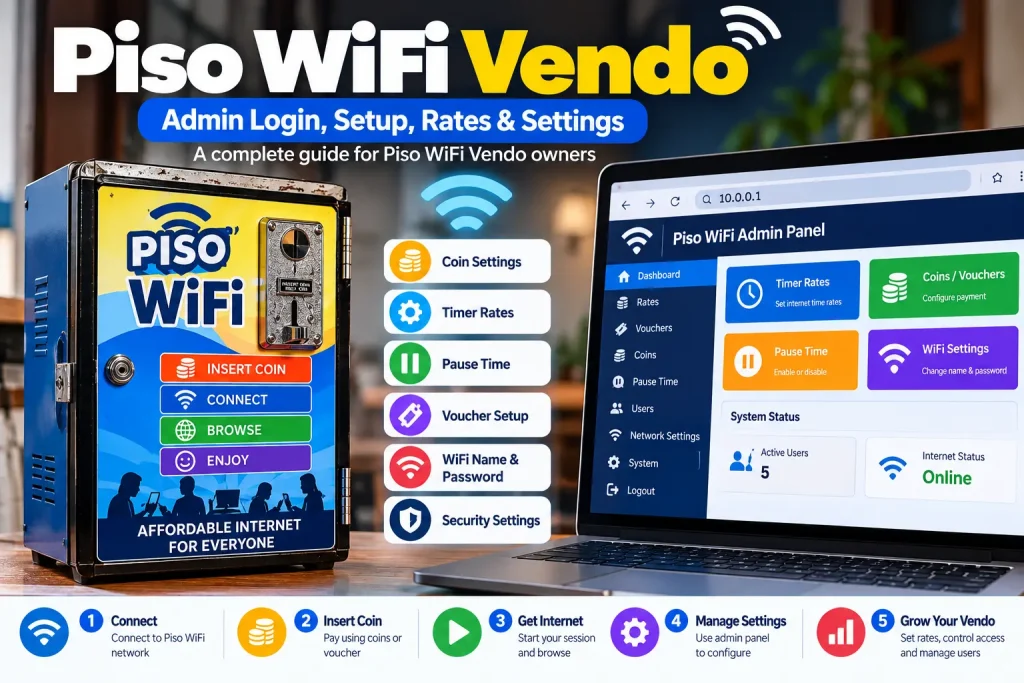
One of the most common issues is being unable to open the Piso WiFi admin or portal address at 10.0.0.1.
First, make sure your device is connected to the correct Piso WiFi network. The 10.0.0.1 address normally works only when your device is connected to the network that uses it as its gateway.
Then try these steps:
- Connect to the Piso WiFi network.
- Open Chrome, Safari, or another browser.
- Enter
http://10.0.0.1in the address bar. - Make sure you do not search for the address in Google.
- Temporarily disable mobile data if your phone keeps switching networks.
- Restart WiFi and try again.
If 10.0.0.1 still does not work, the Piso WiFi system may use another gateway address. Check your device’s network details to find the actual gateway.
Piso WiFi Login Page Not Loading
Sometimes the WiFi connection works, but the Piso WiFi login page does not appear.
Start by opening a new browser tab and visiting a normal website. This can trigger the captive portal. You can also disconnect from the Piso WiFi network and reconnect.
If the portal still does not appear, try:
- Closing and reopening the browser
- Clearing the browser cache
- Forgetting and reconnecting to the WiFi network
- Turning off VPN or private DNS temporarily
- Trying another browser
- Restarting your device
Do not assume that the portal must always be available at 10.0.0.1. Some systems use different local addresses.
Piso WiFi Connected but No Internet
A device can show a WiFi connection even when internet access has not started.
If you have not purchased or activated a session, this can be normal. Open the Piso WiFi portal and follow the payment or access instructions.
If you already paid but still cannot browse, check your remaining session time. If your session is active, reconnect to the network and open the portal again.
For persistent problems, the issue may be on the Vendo machine, router, or internet connection rather than your phone or computer.
Piso WiFi Stuck on Obtaining IP Address
When a phone or laptop remains on Obtaining IP Address, it usually means the device has not received a valid network address from the Piso WiFi system.
Try these steps:
- Turn WiFi off and on.
- Forget the Piso WiFi network.
- Restart your device.
- Reconnect to the network.
- Check whether other devices can connect.
- Restart the network equipment if you are the system owner.
If multiple devices have the same problem, the issue is more likely related to the Piso WiFi router, DHCP configuration, or network equipment.
Piso WiFi Pause Button Missing
The pause button depends on the Piso WiFi system and its configuration. It may not be available for every network or every session.
If you previously had a pause option but it disappeared, open the portal again and check your active session. You can also reconnect to the Piso WiFi network and reload the portal.
For Vendo owners, pause functionality may need to be enabled or correctly configured in the system’s settings.
A missing pause button does not necessarily mean that your phone is faulty.
Piso WiFi Session Cannot Resume
If you paused your session but cannot resume it, reconnect to the same Piso WiFi network and open the portal.
Check whether your remaining time is still valid. A paused session can become unavailable if the allowed pause period or total session time has expired.
Also avoid switching between different Piso WiFi networks while trying to resume a session. Some systems associate the session with specific network or device information.
Piso WiFi Session Expired
A Piso WiFi session can expire when the purchased time reaches its limit. In some systems, pause time also has restrictions.
If your session has expired, check the portal for your current status. You may need to purchase another session.
If the session expired unexpectedly while you still had time remaining, reconnect to the network and reload the portal. If the problem continues, the Vendo owner may need to check the system configuration.
Piso WiFi Voucher or Coin Not Working
If a coin is inserted but no time is added, first check whether the machine registered the payment.
For voucher-based systems, enter the code carefully and check for similar characters such as 0 and O.
If payment is accepted but your session does not start, refresh the portal and reconnect to the network. Do not repeatedly insert coins if the machine has already accepted the payment.
Persistent payment problems usually require the Vendo owner to inspect the coin mechanism, voucher system, or server configuration.
Browser Redirect Problems
Piso WiFi portals use browser redirects to send users to the login page. Occasionally, the redirect may fail.
Try opening a new browser tab after connecting to WiFi. Disable VPN or custom DNS temporarily because these services can interfere with captive portals.
Chrome, Safari, and other browsers may handle captive portals differently. If one browser fails, testing another browser can quickly identify whether the problem is browser-specific.
How to Find the Correct Piso WiFi IP Address
Not every Piso WiFi network uses the same gateway. Although 10.0.0.1 is commonly associated with Piso WiFi systems, you should not assume it is always correct.
On Windows, open the network connection details and look for Default Gateway.
On Android, open the connected WiFi network’s details and look for the gateway or router information.
On iPhone, open the connected WiFi network settings and check the Router field.
The address shown there is generally the local gateway you should use instead of guessing different IP addresses.
Common Piso WiFi IP Variations
People often search for Piso WiFi using incorrectly formatted IP addresses. Common examples include:
- 10.0.0.1 Piso WiFi
- 10.0.0.0.1 Piso WiFi
- 10.0 0.1 Piso WiFi
- 10.0.01 Piso WiFi
- 10.0.1 Piso WiFi
- 10.0-0.1 Piso WiFi
- 10.001 Piso WiFi
- 1.0.0.1 Piso WiFi
- 1.0.0.0.1 Piso WiFi
- 10.10 0.1 Piso WiFi
- 10.10.10.l Piso WiFi
- 01.01.01 Piso WiFi
These variations do not necessarily represent different Piso WiFi systems. Many are simply typing or formatting errors.
If you need to access your network, use the actual gateway shown in your device’s network information instead of trying random IP addresses.
Piso WiFi Troubleshooting on Android
Android users can solve many basic problems without changing router settings.
Start by turning WiFi off and on. If that does not help, forget the Piso WiFi network and connect again. Make sure mobile data, VPN, or private DNS is not preventing the portal from loading.
If the network remains stuck on obtaining an IP address, test another device. If multiple devices fail, the problem may be with the Piso WiFi system rather than Android.
Piso WiFi Troubleshooting on Windows
On Windows, reconnect to the Piso WiFi network and open a browser manually. If the portal does not appear, disconnect and reconnect to WiFi.
You can also check the network’s default gateway to determine whether 10.0.0.1 is actually the correct address.
If Windows shows that the network is connected but there is no internet, first check whether the Piso WiFi session has been activated.
When to Contact the Piso WiFi Owner
Not every problem can be fixed from the user’s device.
Contact the Vendo owner when:
- Coins are accepted but time is not added
- The machine does not accept payment
- Several devices cannot connect
- The portal is completely offline
- Your paid session disappears
- The system remains unavailable after restarting your device
- The network has no internet connection
The owner can check the Vendo machine, router, server, internet connection, and system configuration.
Piso WiFi Troubleshooting Tips
Before changing advanced settings, try the simplest solutions first. Reconnect to WiFi, reload the portal, restart your device, and verify the correct gateway.
Do not repeatedly insert coins when a payment appears to have been accepted. Also avoid changing router settings unless you manage the Piso WiFi system.
If 10.0.0.1 does not open, remember that it is not a universal Piso WiFi address. Your system may use another gateway.
FAQs
Why is 10.0.0.1 not opening on Piso WiFi?
Make sure you are connected to the correct Piso WiFi network and enter http://10.0.0.1 directly into the browser. If it still fails, check your device’s gateway because the network may use another IP.
Why is the Piso WiFi portal not appearing?
Reconnect to WiFi and open a new browser tab. Disabling VPN or private DNS can also help. If the portal remains unavailable, the problem may be with the Piso WiFi system.
Why does Piso WiFi say obtaining IP address?
Your device may not be receiving an IP address from the network. Forget the network, reconnect, and restart your device. If several devices have the same issue, the router or DHCP configuration may need attention.
Why can’t I pause my Piso WiFi session?
Pause functionality depends on the system configuration. The pause option may be disabled, unavailable for your session, or temporarily missing from the portal.
Can I use another IP instead of 10.0.0.1?
Yes, if your Piso WiFi system uses another gateway. Check the gateway or router address in your device’s network settings instead of guessing an IP.
Final Thoughts
Most Piso WiFi problems are related to network connection, portal access, incorrect IP addresses, browser behavior, or session settings. Start with basic troubleshooting before making advanced changes.
Remember that 10.0.0.1 is a common Piso WiFi gateway, but it is not universal. If it does not work, finding the actual gateway on your Android, iPhone, or Windows device is usually the best next step.
For Vendo owners, repeated problems across multiple devices usually indicate a system, router, DHCP, payment, or internet connection issue that requires checking the Piso WiFi setup.