Piso WiFi 10.0.0.1 Login & Portal guide covers login steps, portal access, admin login, IP tips, Chrome access, and troubleshooting.
Piso WiFi 10.0.0.1 Login & Portal
Piso WiFi commonly uses a local network address such as 10.0.0.1 to provide access to its login and portal pages. When you connect your phone, laptop, or other device to a Piso WiFi network, the portal may open automatically. If it does not, you can often open your browser and enter the correct local gateway address manually.
This guide explains how to access the Piso WiFi portal, use 10.0.0.1 for login, and understand the difference between customer access and the admin panel.
What Is 10.0.0.1 Piso WiFi?
10.0.0.1 is a private IP address that can be used as the gateway for some Piso WiFi networks. It allows devices connected to the network to communicate with the Piso WiFi system.
Depending on the setup, the address can be used to reach a customer portal, login page, or administrative interface. However, 10.0.0.1 is not universal for every Piso WiFi installation. Some systems use a different gateway address.
How to Open the Piso WiFi Portal
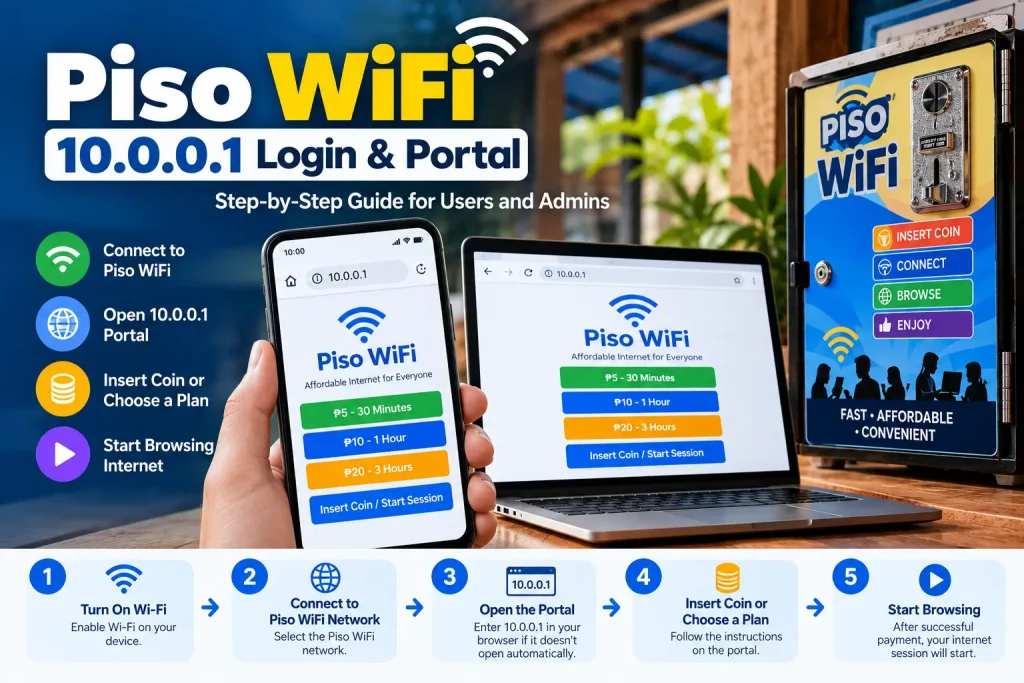
Follow these simple steps:
- Turn on Wi-Fi on your phone or computer.
- Connect to the available Piso WiFi network.
- Wait a few seconds for the connection.
- Open Chrome, Safari, or another browser.
- If the portal does not appear automatically, enter 10.0.0.1 in the address bar.
- Press Enter or Go.
- Wait for the Piso WiFi login or portal page to load.
Once the portal opens, follow the instructions shown on the screen to start your internet session.
10.0.0.1 Piso WiFi Login
The customer login process is usually straightforward. First, connect to the Piso WiFi network and open the portal. Depending on the system, you may need to insert coins, select a time package, enter a voucher, or press a start button.
The exact options depend on how the Piso WiFi machine has been configured by its owner.
Important: Do not assume that every Piso WiFi system uses the same login credentials or payment method.
Piso WiFi Portal Login
The Piso WiFi portal is designed mainly for customers. It may display options such as:
- Available internet packages
- Remaining session time
- Start session
- Pause session
- Resume session
- Voucher or access code
- Connection status
If the portal opens automatically after connecting to Wi-Fi, there is normally no need to manually enter an IP address.
10.0.0.1 Admin Login
The admin login is different from the normal customer portal. Owners use the administration area to manage their Piso WiFi installation.
Depending on the system, the admin panel may provide settings for:
- Wi-Fi name and password
- Internet time rates
- User sessions
- Pause settings
- Vouchers
- Coin settings
- Network configuration
Admin credentials are set by the system owner or installer. Avoid trying random default passwords, especially on a machine that you do not own.
10.0.0.1 vs 10.0.0.0.1
A common search mistake is typing 10.0.0.0.1 instead of 10.0.0.1.
The standard IPv4 address has four numerical sections separated by dots. Therefore, 10.0.0.1 is a valid IPv4 address, while 10.0.0.0.1 contains five sections and is not a standard IPv4 address.
Other searches such as:
- 10.0 0.1 Piso WiFi
- 10.0.01 Piso WiFi
- 10.0.1 Piso WiFi
- 10.0-0.1 Piso WiFi
are usually typing variations. Always use the actual gateway shown by your Piso WiFi network rather than relying on a guessed address.
How to Find the Correct Piso WiFi IP
If 10.0.0.1 does not open, your Piso WiFi system may use another gateway.
On your device, open the Wi-Fi network details and look for Gateway, Router, or IP Address information. The gateway address is generally the address you should use to communicate with the local network.
This is more reliable than repeatedly trying different IP variations.
Piso WiFi Login on Chrome
Chrome can be used to access a Piso WiFi portal on Android, Windows, and other supported devices.
Connect to the Piso WiFi network first, then open Chrome. If the login page does not appear automatically, enter the correct gateway address in the address bar.
If the page still does not load, check that you are connected to the correct Wi-Fi network and that the device has received a local IP address.
10.0.0.1 Login Page Not Opening
If the Piso WiFi login page does not open, try these basic fixes:
- Confirm that you are connected to the Piso WiFi network.
- Turn Wi-Fi off and on again.
- Open another website to trigger the captive portal.
- Enter 10.0.0.1 manually.
- Check the device’s gateway address.
- Restart the Wi-Fi connection.
- Try another browser.
- Disable a VPN temporarily if it interferes with local network access.
If the problem continues, the issue may be with the Piso WiFi router, portal configuration, or internet connection.
Customer Login vs Admin Login
These two areas should not be confused.
Customer Portal: Used by people who want to purchase or start an internet session, check remaining time, or pause and resume access.
Admin Panel: Used by the Piso WiFi owner to configure rates, network settings, users, vouchers, and other system options.
The available features depend on the Piso WiFi software and hardware being used.
Frequently Asked Questions
What is the Piso WiFi 10.0.0.1 login?
It is a local network address that may provide access to a Piso WiFi portal or administration interface, depending on the system configuration.
Why is 10.0.0.1 not opening?
You may be connected to the wrong network, using an incorrect gateway, or the Piso WiFi portal may have a configuration problem.
Is 10.0.0.0.1 the same as 10.0.0.1?
No. 10.0.0.1 is a valid IPv4 address. 10.0.0.0.1 is not a standard IPv4 address.
Can I access Piso WiFi from my phone?
Yes. Connect your phone to the Piso WiFi network and open the portal through a mobile browser.
Is the customer portal the same as the admin panel?
No. The customer portal is for internet users, while the admin panel is intended for the Piso WiFi owner or administrator.
Final Thoughts
The Piso WiFi 10.0.0.1 login and portal provide a convenient way to access a local Piso WiFi system. In most cases, you simply connect to the network and wait for the portal to appear. If it does not, entering the correct gateway address in your browser can help.
Remember that 10.0.0.1 is not used by every Piso WiFi setup. If it does not work, checking your device’s actual gateway is the best next step.