LPB Piso WiFi guide covers 10.0.0.1 login, pause time, admin access, AdoPiSoft, JuanFi, JM, TP-Link, and 1Click systems & key tips!
LPB Piso WiFi & Other Systems
Many LPB setups use a local portal and router configuration to control internet sessions, time limits, rates, and user access.
Along with LPB Piso WiFi, other systems such as AdoPiSoft, JuanFi, JM Piso WiFi, TP-Link-based setups, and 1Click Piso WiFi are also used for public or small-business internet services. Although their interfaces and configurations can differ, the basic idea remains similar: connect to the WiFi network, open the portal, pay for time, and start browsing.
What Is LPB Piso WiFi?
LPB Piso WiFi is a vending-style internet system designed for affordable, time-based WiFi access. A typical setup includes a router, access point, Piso WiFi software or controller, and a coin or payment mechanism.
The system can provide different time packages depending on how the owner configures the rates. Some setups may also include features such as pause time, session management, vouchers, and an admin panel.
LPB Piso WiFi 10.0.0.1 Login
Some LPB Piso WiFi installations use 10.0.0.1 as a local gateway or management address. However, this address is not universal for every installation.
If your LPB system uses 10.0.0.1, connect your device to the Piso WiFi network and open a browser. Enter the correct local IP address in the browser’s address bar. You should then see the relevant login or portal page.
If 10.0.0.1 does not open, do not assume the system is broken. The router may be using another gateway address. Checking your device’s network details can help you identify the correct IP.
LPB Piso WiFi Pause Time
Pause time allows a user to temporarily stop an active session while keeping the remaining internet time available, depending on the system configuration.
To use pause time, connect to the Piso WiFi network and open the user portal. If the feature is enabled, select the Pause option. When you want to continue browsing, open the portal again and choose the resume option.
Pause availability and limits depend on how the LPB system has been configured by the owner.
LPB Piso WiFi Admin
The LPB admin area is intended for the system owner or administrator rather than normal customers. Admin settings may control WiFi access, session duration, rates, users, vouchers, and other network options.
Never use random default passwords found online unless they are specifically provided by the equipment or system owner. Admin credentials vary between installations.
AdoPiSoft Piso WiFi
AdoPiSoft is another popular platform used for Piso WiFi systems. It can provide features for managing user sessions, vouchers, time limits, and network access.
The exact login address and available features depend on the individual installation. Therefore, AdoPiSoft users should follow the configuration provided by their system administrator.
JuanFi Piso WiFi
JuanFi Piso WiFi setups are designed around the same pay-per-use internet concept. Users connect to the available WiFi network and access the configured portal before starting their session.
For owners, the system can provide tools for managing access and internet usage. Configuration can differ between installations, so the correct local gateway and admin details should always be checked.
JM Piso WiFi
JM Piso WiFi is another type of setup that can be used for vending-based internet access. Depending on the configuration, users may receive internet time after inserting coins or following the available payment process.
If the portal does not automatically appear, opening a browser and accessing the local portal address may help.
TP-Link Piso WiFi
TP-Link hardware can be used as part of a Piso WiFi network, although the actual Piso WiFi functionality depends on the software and overall configuration.
The TP-Link router’s management IP may not always be 10.0.0.1. Check the device’s network information or router configuration before trying to access the admin page.
1Click Piso WiFi
1Click Piso WiFi is another setup users may encounter when searching for vending-based internet systems. Its interface and login process can differ from LPB or other platforms.
For this reason, avoid assuming that every Piso WiFi system uses the same portal, IP address, or admin credentials.
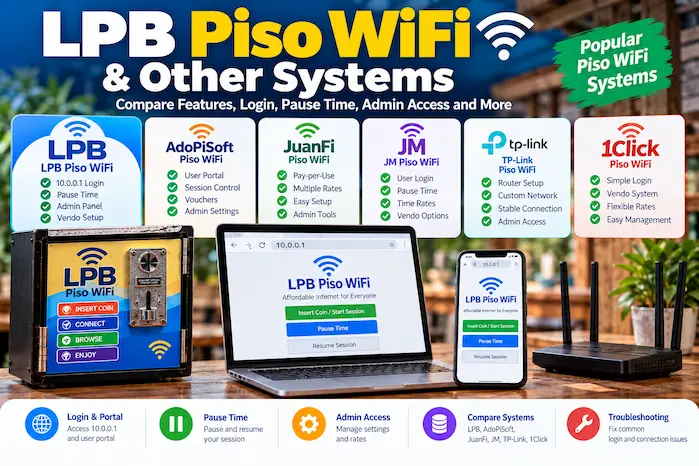
LPB vs AdoPiSoft vs JuanFi
The main difference between these systems is their software, configuration, interface, and management features. The basic customer experience can still be similar:
- Connect to the Piso WiFi network.
- Open the portal.
- Select or purchase internet time.
- Start the session.
- Pause or resume if the feature is available.
For owners, the better option depends on hardware compatibility, required features, ease of management, and available support.
Common LPB Piso WiFi Problems
Some common issues include:
- 10.0.0.1 does not open
- Login page is missing
- Piso WiFi portal does not appear
- Connected but no internet
- Pause button is unavailable
- Coin payment is not recognized
- Session does not resume
- Incorrect gateway or IP address
- Admin page cannot be accessed
Before changing settings, confirm that your device is connected to the correct Piso WiFi network and that you are using the correct local IP.
Final Thoughts
LPB Piso WiFi is one of several systems used to provide affordable, time-based internet access. AdoPiSoft, JuanFi, JM, TP-Link, and 1Click setups offer similar concepts but can have different interfaces and configurations.
The most important thing is to identify which system your Piso WiFi uses before following login, pause, or admin instructions. This prevents confusion between customer portals, router addresses, and administrator settings.