10.0.0.1 Piso WiFi Login & Admin guide with access steps, password tips, portal help, troubleshooting, and security advice for users.
Piso WiFi Vendo & Admin Setup
A Piso WiFi Vendo is a pay-per-use internet machine that allows users to access WiFi by inserting coins or using an available access method. The system gives customers internet time based on the amount they pay. For owners, the admin panel provides control over connection settings, rates, sessions, pause time, and other features.
Whether you are setting up a new Piso WiFi Vendo or managing an existing machine, understanding the admin panel and basic configuration makes the system easier to operate.
What Is a Piso WiFi Vendo?
A Piso WiFi Vendo is a self-service internet access system commonly installed in stores, homes, boarding houses, waiting areas, and other public locations. Users connect to the Piso WiFi network, open the portal, and pay for internet access.
The Vendo system normally includes:
- WiFi router or access point
- Coin slot or payment system
- Piso WiFi software
- Customer portal
- Admin panel
- Timer and session controls
The exact hardware and software can vary depending on the Piso WiFi system being used.
How Does Piso WiFi Vendo Work?
The basic process is simple:
- Turn on WiFi on your phone or computer.
- Connect to the Piso WiFi network.
- Open the customer portal.
- Insert coins or enter the required access code.
- Select or receive an internet session.
- Browse until the purchased time expires.
The admin system works separately from the customer portal. Owners use the admin side to manage settings, while customers use the portal to start and control their sessions.
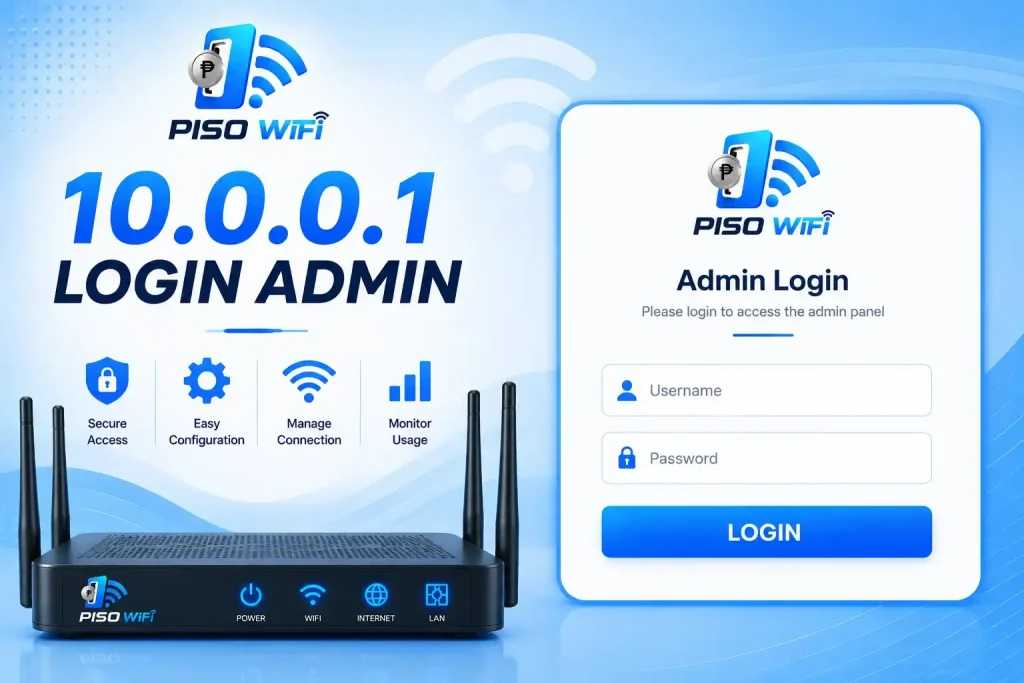
Piso WiFi Vendo Login
The login address depends on the hardware and software configuration. 10.0.0.1 is commonly used by some Piso WiFi systems, but it is not a universal address.
If your system uses 10.0.0.1, connect to the Piso WiFi network and enter:
10.0.0.1
in your browser’s address bar.
You may see a login page or an administration interface. Use the administrator credentials provided when the system was installed. Avoid assuming that common combinations such as admin/admin will work because credentials vary between setups.
If 10.0.0.1 does not open, check your device’s gateway address or refer to your system configuration.
Piso WiFi Admin Panel
The admin panel is where the owner manages the Vendo system. Depending on the platform, available options can include:
- WiFi and network settings
- Internet time rates
- User sessions
- Pause time
- Coin settings
- Voucher settings
- Customer access controls
- System status
- Basic security settings
The layout can differ significantly between Piso WiFi platforms, so only change settings that you understand.
How to Set Piso WiFi Rates
Piso WiFi rates determine how much internet time a customer receives for a specific payment.
For example, an owner may configure different time packages for different coin amounts. The exact rates depend on the owner’s business model and internet capacity.
When changing rates, consider:
- Internet speed
- Number of connected users
- Operating costs
- Customer demand
- Desired session duration
After changing a rate, test it with a customer session to make sure the timer works correctly.
How to Configure Pause Time
Many Piso WiFi systems provide a pause feature that lets customers temporarily stop an active session. When supported, the remaining time can be preserved while the session is paused.
The availability and rules of pause time depend on the Piso WiFi software and owner settings.
If customers cannot see a pause button, check whether the feature is enabled in the admin panel and whether the current system supports it.
How to Change Piso WiFi Name and Password
Network settings are usually managed from the router or admin interface. Owners may be able to change the WiFi name (SSID) and wireless password.
After changing these settings:
- Save the configuration.
- Wait for the network to restart if required.
- Reconnect your devices using the new WiFi details.
- Test the customer portal.
Use a strong administrator password and avoid sharing admin credentials with customers.
Piso WiFi Coin and Voucher Settings
Depending on the setup, a Vendo machine may use coins, vouchers, or both. The payment system must communicate correctly with the Piso WiFi software so that a customer’s session starts after successful payment.
If a coin is not recognized, check the coin mechanism, wiring, configuration, and software status. For voucher problems, verify that the voucher is valid and that the system is connected correctly.
1Click Piso WiFi and Other Vendo Systems
Piso WiFi machines can use different software and hardware combinations. 1Click Piso WiFi, LPB, AdoPiSoft, JuanFi, JM, and other systems may have different admin interfaces and configuration methods.
For this reason, instructions for one Vendo system should not automatically be applied to another. Always identify your system before changing router, payment, or network settings.
Basic Piso WiFi Vendo Security
Owners should protect the admin interface because it controls important network settings.
Follow these basic practices:
- Change default administrator credentials.
- Use a strong password.
- Do not share admin access with customers.
- Keep router and Piso WiFi software updated when updates are available.
- Limit unnecessary access to the admin panel.
- Keep backup copies of important configurations.
These simple steps can reduce the risk of unauthorized changes.
Common Piso WiFi Vendo Problems
Some common problems include:
- 10.0.0.1 not opening
- Customer portal not loading
- Coins not being recognized
- Vouchers not working
- Pause button missing
- Internet session not starting
- Incorrect timer calculation
- WiFi connected but no internet
Before changing advanced settings, restart the relevant equipment and check the network connection. If the issue continues, identify whether the problem is related to the router, payment mechanism, software, or internet connection.
Final Thoughts
A Piso WiFi Vendo combines a payment system, network equipment, customer portal, and management software into one self-service internet solution. Owners can use the admin panel to manage rates, sessions, pause settings, and network configuration.
The most important rule is to identify your exact Piso WiFi system before changing settings. Since 10.0.0.1 and other login addresses can vary, using the correct gateway and administrator credentials is essential for reliable management.